
The Signals tab
Switch the right panel from Chat to Signals. Each card shows the market, direction, Valid or expired, Entry, Target, Stop with the percentages, and How it trades in one line (4h MACD golden cross — momentum flipping bullish out of a ranging regime). Execute LONG or Execute SHORT opens the order modal pre-filled; Dismiss clears the card.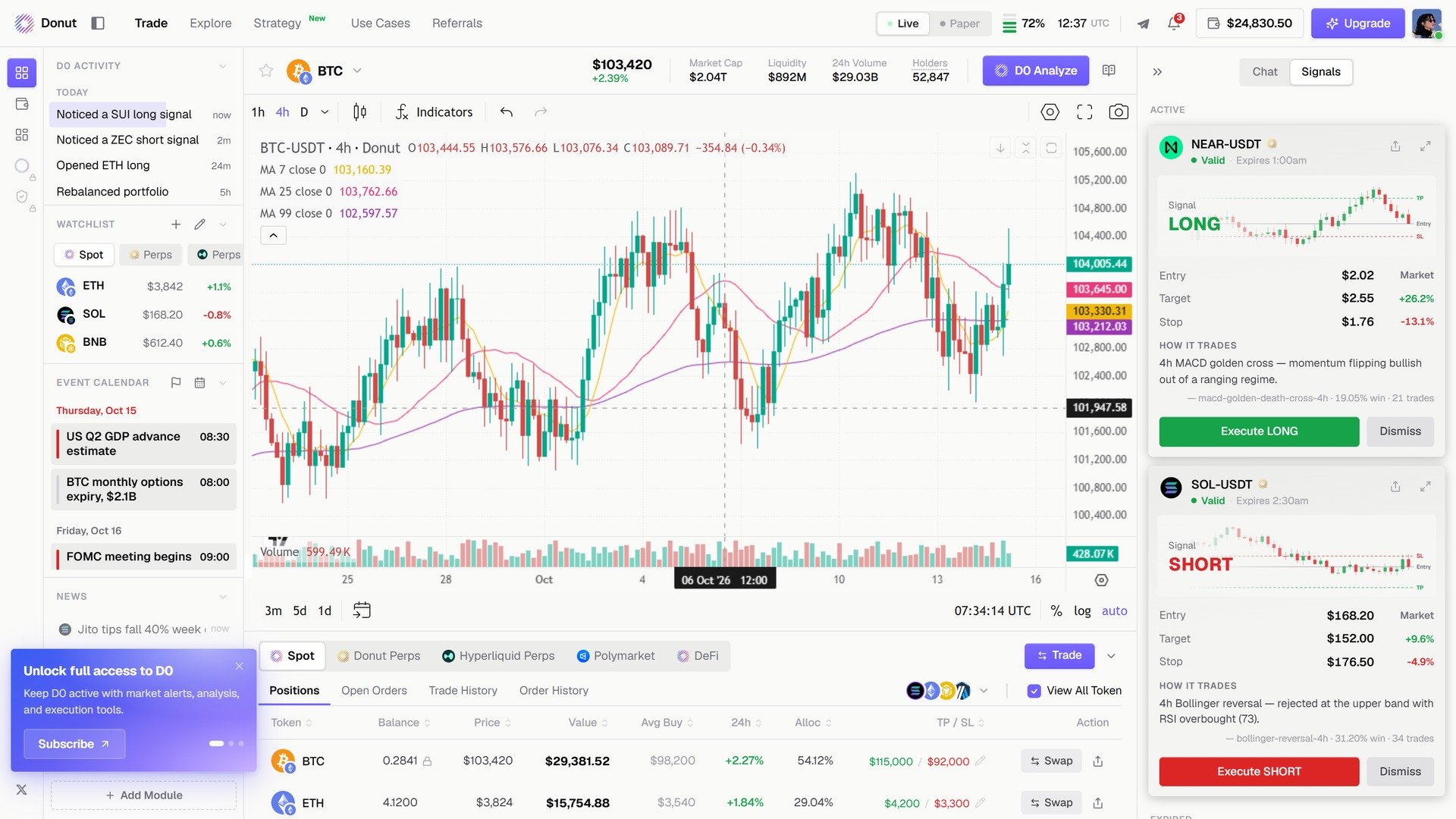
The Signals tab.
Two types of signals
Technical signals come from price action and indicators: a MACD golden cross, an RSI extreme, an EMA crossover, an OBV divergence. Event-driven signals fire when something happens in the market, not on the chart: a listing announcement, a macro print, a smart-money wallet moving, funding flipping.How D0 decides what to send you
Every signal is scored before it reaches you, on how confident the signal is, how well it fits the current market regime, and how accurate that signal type has been historically. Your notification settings then filter what gets pushed. Everything else still shows in the Signals tab and the scanner.The scanner
Explore → Market Opportunities is the full-screen view of the same engine: the scanner status (wallets tracked, feeds, signals today, average confidence), the Feed of detections filterable by Smart money, Strategy, Events, Funding, Watchlist, and two other views of the same data, Heatmap and Map.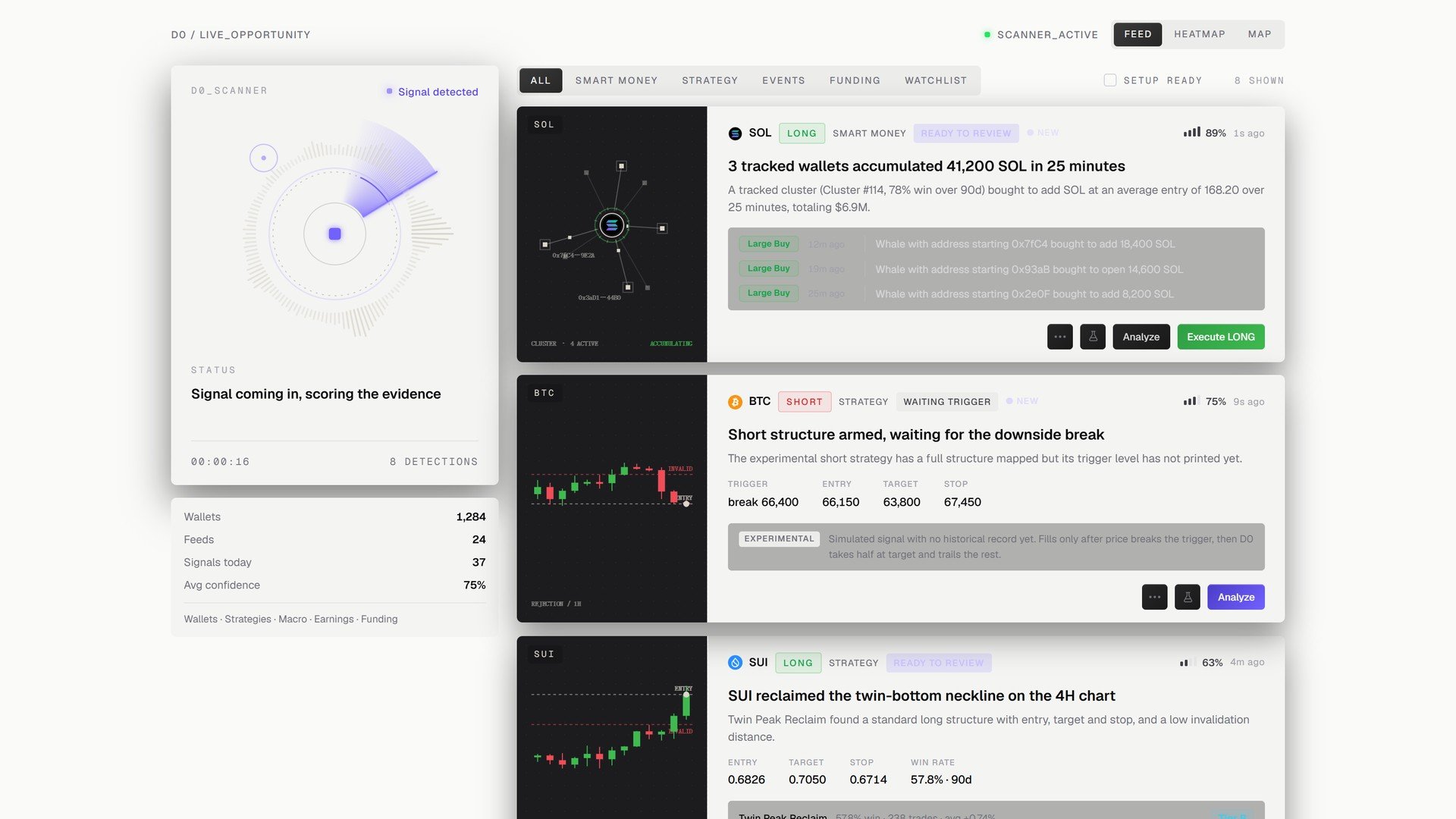
The scanner feed.
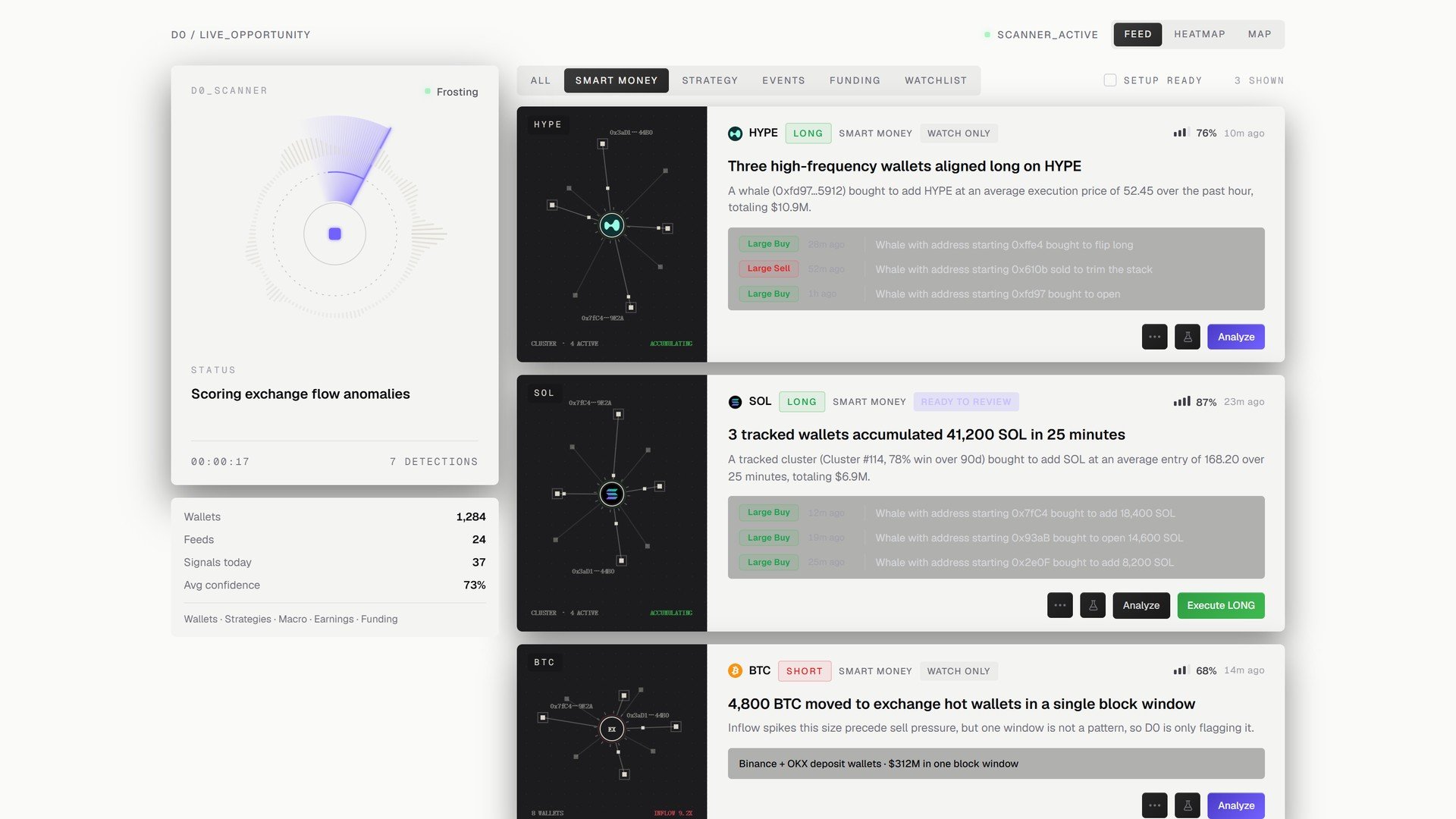
Smart money: tracked wallets aligning on one asset, with the cluster drawn out.
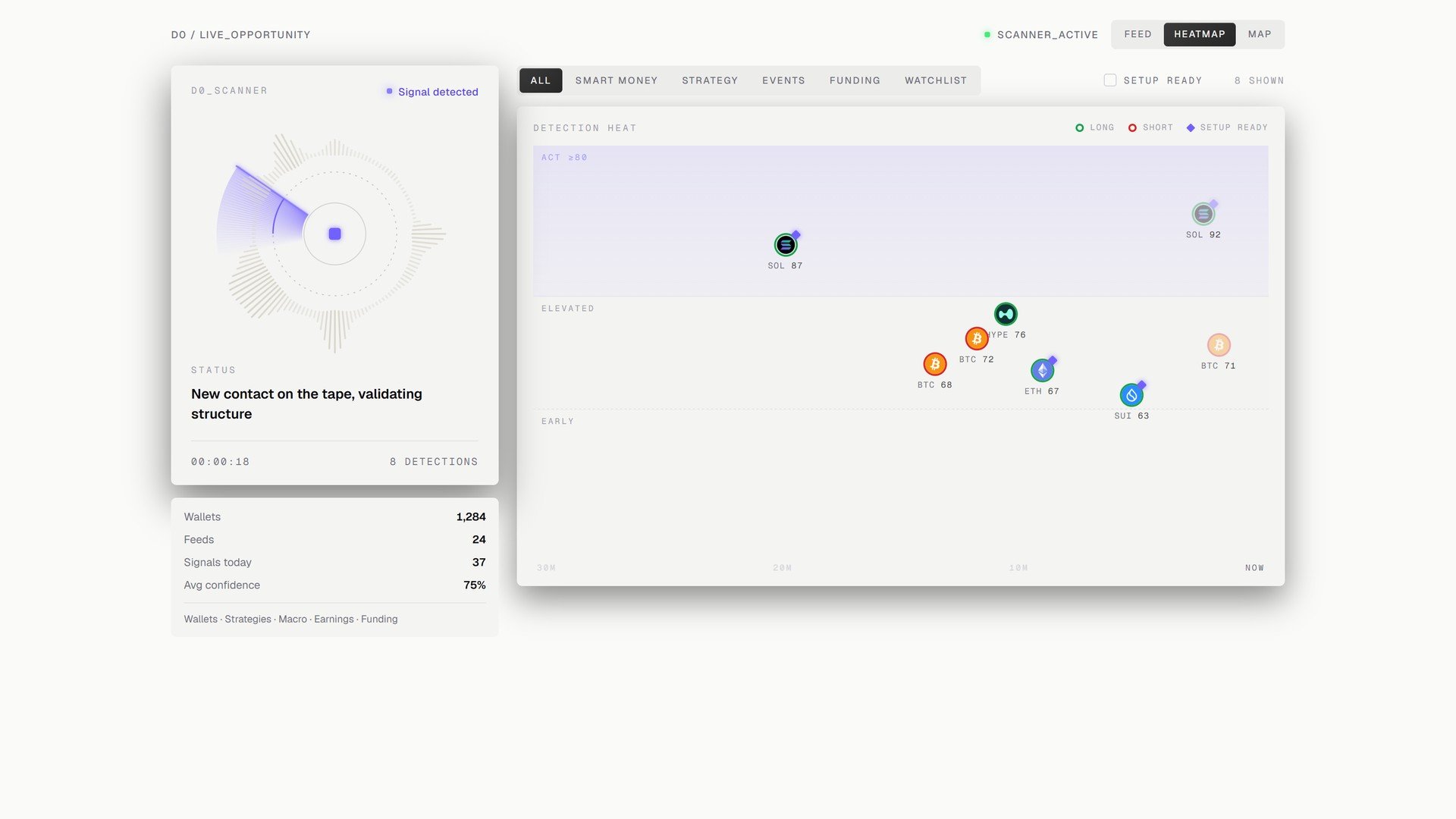
Heatmap view.
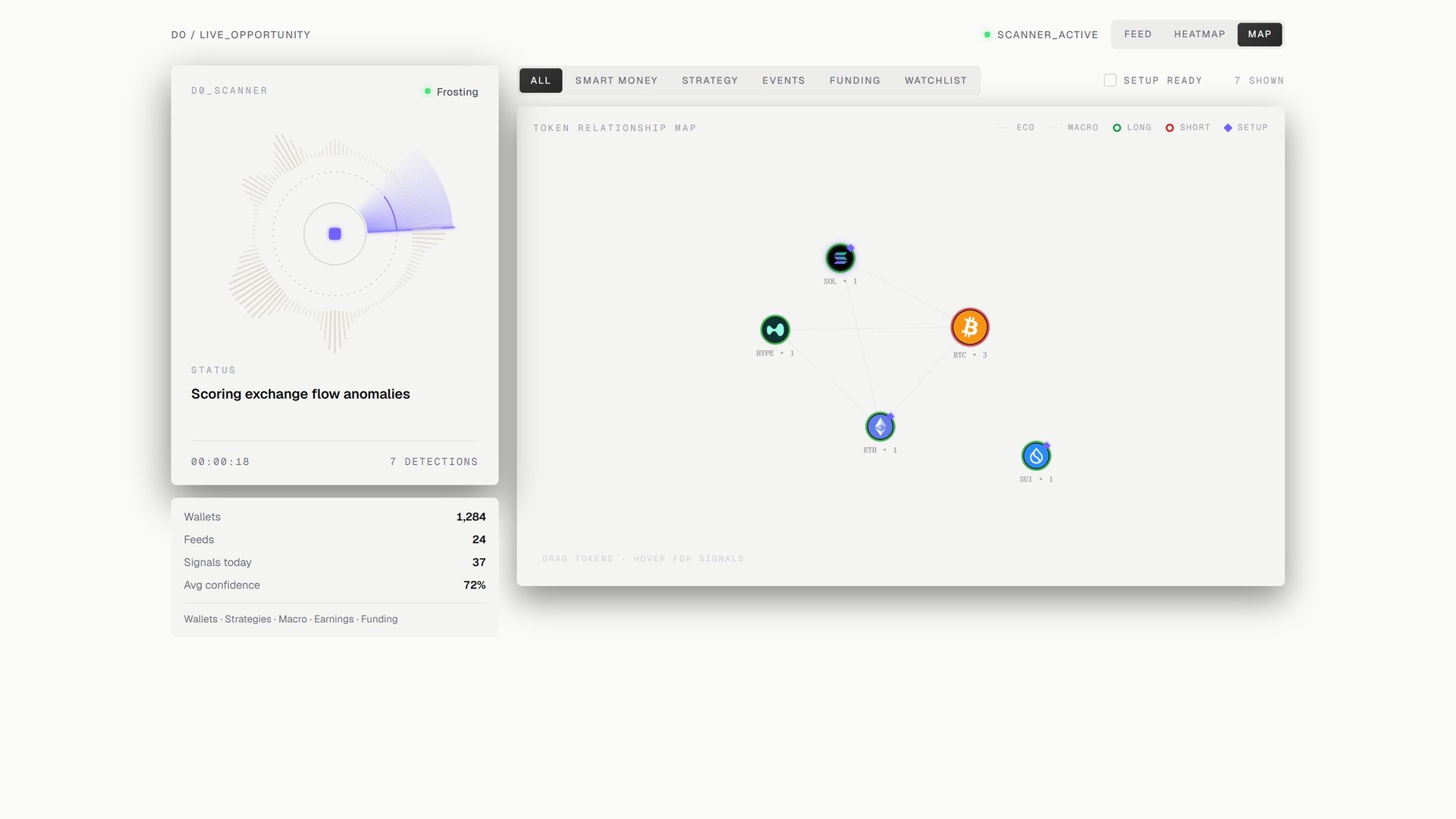
Map view.
Acting on a signal
- Execute from the card. The order modal opens with the market, direction, and bracket filled in; you confirm.
- Paper Trade to take it in the paper account instead.
- Ask D0 about this on a deck card for the reasoning and what would invalidate it.
- Dismiss if the setup does not fit your view.
Controlling what reaches you
Settings → Notifications has a toggle per signal source (Signals, On-chain Moves, Polymarket Opportunities, Thorp Momentum, Thorp Funding Carry) and a Muted list per asset. Muting changes delivery, not the data: muted signals still show in the Signals tab. See Settings.What’s next
- Strategy Library: the strategies that fire these signals
- Explore
- Acting on Thorp Signals: a worked example